
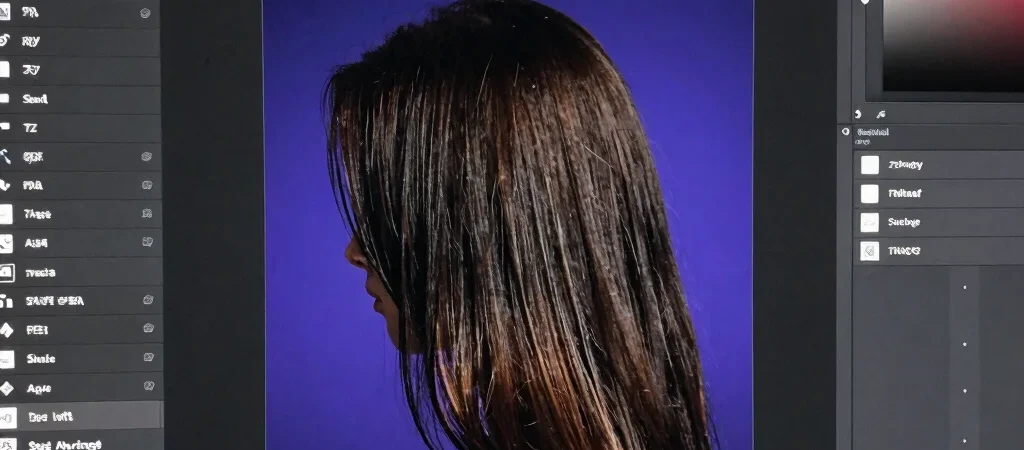
You place a portrait on a dark background, and a pale outline appears around the hair. Instead of erasing around the subject by hand, build the cutout with a selection and a layer mask so you can refine it without permanently removing pixels.
Start with the subject selection
Open the photo in Photoshop and use Select Subject to create a first-pass selection. Check the outline around hair, glasses, and clothing against the original image before moving on; the automatic selection is a starting point, not a finished edge. Choose Select and Mask to inspect and refine the boundary.
Refine only the difficult edges
Use the edge-refinement brush sparingly around loose hair or soft fabric, where individual strands blend into the background. Keep firmer edges, such as a jacket shoulder, clean with the regular selection tools rather than brushing over the whole subject. If the preview makes a pale fringe easier to see, use it to inspect the edge, then switch back to a view that helps you judge the subject itself.
Keep the mask editable
Output the refined selection as a layer mask instead of deleting the background. Place a temporary solid-color layer underneath and zoom in to check the hairline, shoulders, and any gaps between limbs. If the edge needs another adjustment, paint on the mask with a soft brush rather than starting the selection again.