
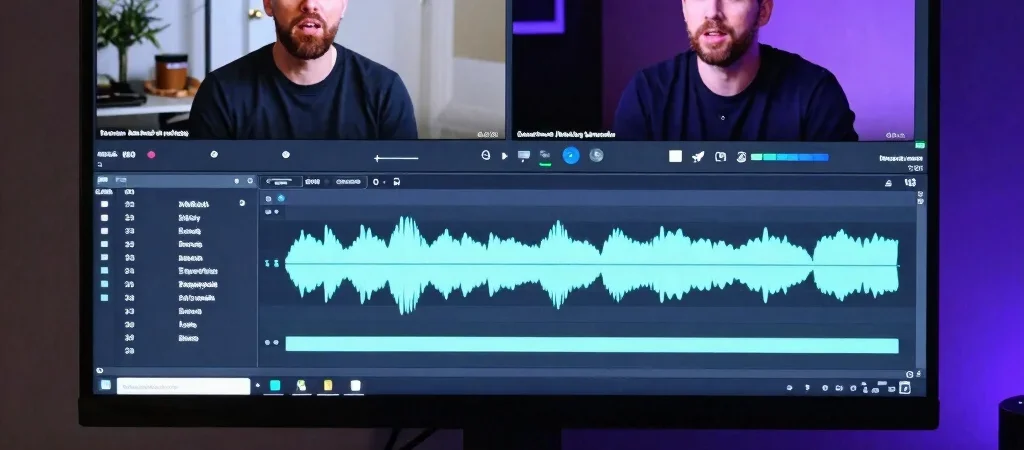
The timeline is full of small hesitations, breaths, and repeated phrases, but cutting every pause can make an interview feel rushed. In Premiere Pro, begin with the spoken audio and use the waveform as a map for finding edits that tighten the answer without flattening the speaker's rhythm.
Find the useful pauses
Place the interview clip in a sequence and enlarge the audio track enough to see its waveform. Listen while scrubbing around pauses and repeated starts; a low waveform can help you locate a quiet gap, but it does not tell you whether the pause feels meaningful. Mark the moments you want to keep before removing anything.
Make cuts that preserve meaning
Use the Razor tool or a split command to isolate a section you have already checked, then remove the unwanted portion and close the gap with a ripple edit. Listen across the cut immediately, especially when the speaker takes a breath or changes thought. If the sentence sounds clipped, restore a little room or move the edit to a more natural pause.
Check the edit in context
Play the full answer from a few seconds before the first edit to a few seconds after the last one. Watch for a jump in the speaker's posture or background that makes a tight cut distracting, and cover it with relevant cutaway footage only when it genuinely helps the story. Finish by checking the audio level and listening once without watching the screen.